
Microsoft Entra Domain Services | 5.1 Erstellen einer Azure SQL VM
- Thomas Schmid

- 18. Jan.
- 3 Min. Lesezeit
Navigieren sie ins Azure Admin Portal
Fenster "Home - Microsoft Azure"
+ Create a resource >

Fenster "Marketplace - Microsoft Azure"
Eingabe Suchfeld virtual machine
Kachel "Virtual machine"
Create >
Virtual machine >

Fenster "Create a virtual machine - Microsoft Azure"
Abschnitt "Project details"
Auswahl Subscription Pay-As-You-Go >
Auswahl Resource group Godangel >
Abschnitt "Instance details"
Eingabe Virtual machine name vm-sql-prod-001
Auswahl Region (Europe) Switzerland North >
Auswahl Availability options No infrastructure redundancy required >
Auswahl Security type Trusted launch virtual machines >
Auswahl Image Windows Server 2025 Datacenter - x64 Gen2 >
VM architecture [x] x64
Run with Azure Spot discount [ ]
Auswahl Size Standard_B1s - 1 vcpu, 1 GiB memory ($ 9.64/month) > (Grösse passen wir später noch an)
Enable Hibernation [ ]
Abschnitt "Administrator Account"
Eingabe Username adminschmid
Eingabe Password *******************
Confirm Password *******************
Next : Disks >

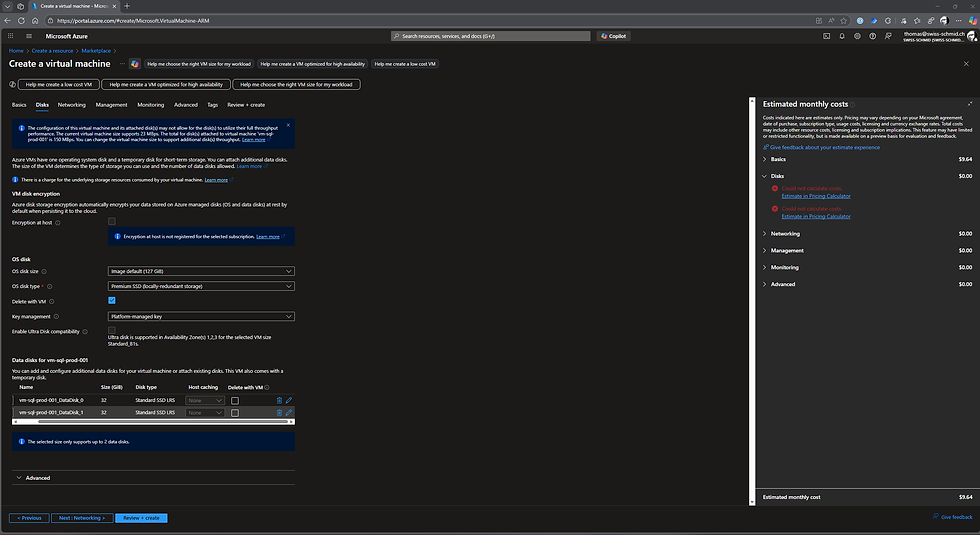
Fenster "Create a virtual machine - Microsoft Azure"
Register "Disks"
Abschnitt "VM disk encryption"
Encryption at host [ ]
Abschnitt "OS disk"Auswahl OS disk size Image default (127 GiB) >
Auswahl OS disk type Premium SSD (locally-redundant storage) >
Delete with VM [x]
Auswahl Key management Platform-managed key >
Enable Ultra Disk copatibility [ ]
Abschnitt "Data disks for vm-sql-prod-001"
Disks nach Printscreen erstellen
vm-sql-prod-001_DataDisk_0 32 GiB Standard SSD LRS
vm-sql-prod-001_DataDisk_1 32 GiB Standard SSD LRS
Next : Networking >

Fenster "Create a virtual machine - Microsoft Azure"
Register "Networking"
Abschnitt "Network interface"
Auswahl Virtual network vnet-prod-northswiss-001
Auswahl Subnet snet-ds-northswiss-001 (10.10.10.0/24)
Auswahl Public IP (new) vm-sql-prod-001-ip
NIC network security group [x] None
Delete public IP and NIC when VM is deleted [ ]
Enable accelerated networking [ ]
Abschnitt "Load balancing"
Load balacing options [x] None
Next : Management >

Fenster "Create a virtual machine - Microsoft Azure"
Register "Management"
Abschnitt "Microsoft Defender for Cloud"
Abschnitt "Identity"
Enable system assigned managed identity [ ]
Abschnitt "Microsoft Entra ID"
Login with Microsoft Entra ID [ ]
Abschnitt "Auto-Shutdown"
Enable auto-shutdown [x]
Eingabe Shutdown time 7:00:00 PM
Auswahl Time zone (UTC+01:00) Amsterdam, Berlin, Bern, Rome, Stockholm, Vienna >
Notification before shutdown [x]
Eingabe Email thomas@swiss-schmid.ch
Abschnitt "Backup"
Enable backup [ ]
Abschnitt "Guest OS updates"
Enable periodic assessment [ ]
Enable hotpatch [ ]
Auswahl Patch orchestration options Automatic by OS (Windows Automatic updates)
Next : Monitoring >

Fenster "Create a virtual machine - Microsoft Azure"
Register "Monitoring"
Abschnitt "Alerts"
Enable recommended alert rules [ ]
Abschnitt "Diagnostics"
Boot diagnostics [x] Enable with managed storage account (recommended)
Enable OS guest diagnostics [ ]
Abschnitt "Health"
Enable application health monitoring [ ]
Next : Advanced >

Fenster "Create a virtual machine - Microsoft Azure"
Register "Advanced"
Abschnitt "Extensions"
Keine auswählen
Abschnitt "VM applications"
Keine auswählen
Abschnitt "Custom data"
Nichts eintragen
Abschnitt "User data"
Enable user data [ ]
Abschnitt "Performance (NVMe)"Higher remote disk storage performance with NVMe [ ]
Abschnitt "Host"
Auswahl Host group No host groups found >

Fenster "Create a virtual machine - Microsoft Azure"
Register "Advanced"
Abschnitt "Capacity reservations"
Auswahl Capacity reservation group None >
Auswahl Proximity placement group No proximity placement groups found >
Next : Tags >

Fenster "Create a virtual machine - Microsoft Azure"
Register "Tags"
Alles auf Standard belassen
Next : Review + Create >

Fenster "Create a virtual machine - Microsoft Azure"
Die Validierung wurde erfolgreich durchgeführt.
Create >


Die Erstellung der VM wird durchgeführt…


…nach einer gewissen Zeit wurde die VM erstellt.

Kommentare